How to use Sink In in Safari on iPhone and iPad
Six short steps, and Safari underlines phrasal verbs on every page you read. It takes about a minute.
Before you start
The Safari extension will be part of the next update of the Sink In app. When the update is ready, update the app from the App Store. You do not need to install anything else. The extension uses your account from the app, so there is no second login.
The pictures show an iPhone. On iPad, the steps are almost the same.
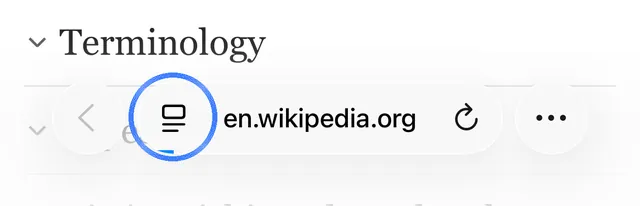
1. Open the page menu
Open any web page in Safari. Tap the page menu button on the left side of the address bar.
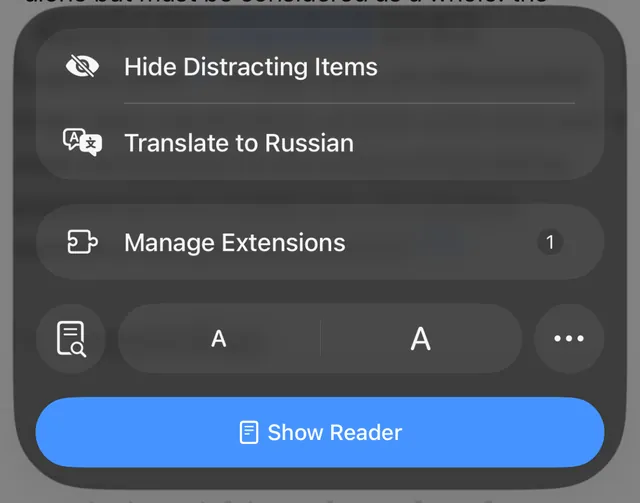
2. Tap Manage Extensions
A small number next to Manage Extensions means a new extension is ready to use.
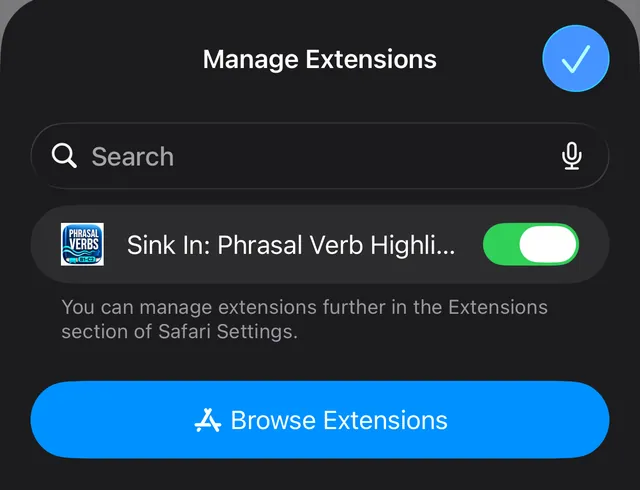
3. Allow Sink In
Find Sink In: Phrasal Verb Highlighter and tap the switch next to it, so it is green. Then tap the check mark to close the list.
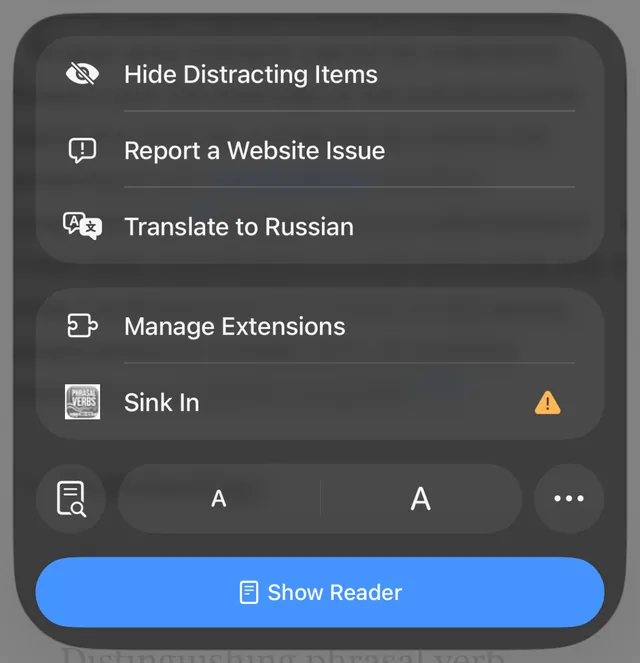
4. Open Sink In
Open the page menu again and tap Sink In. The yellow warning sign means Sink In cannot read this page yet. The next step fixes that.
5. Let Sink In read web pages
Safari asks if Sink In can read the site. Tap Always Allow…, then tap Always Allow on Every Website. Now Sink In works on every page you open.
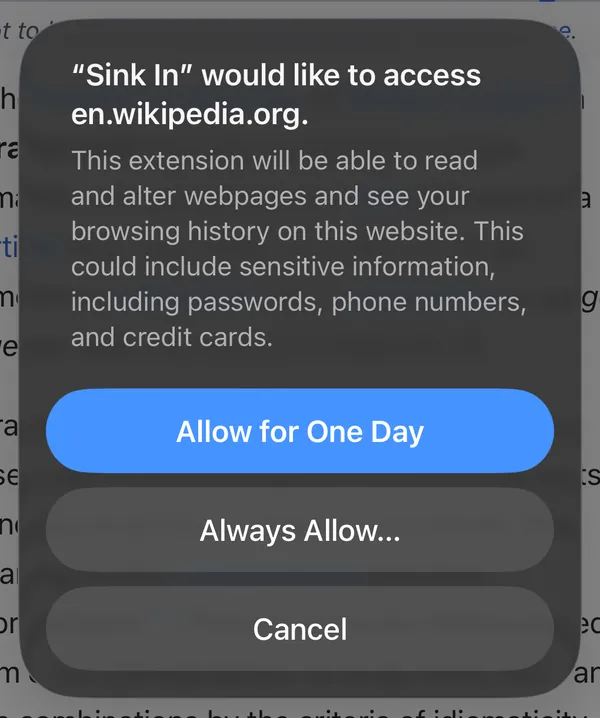
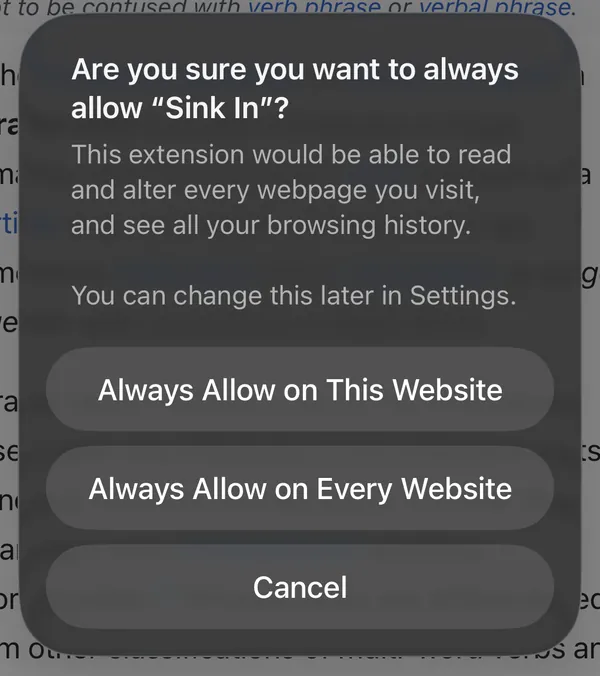
If you tap Allow for One Day, Safari asks again tomorrow. If you choose This Website, you need to allow each new site in the same way.
Why does Safari show a warning?
Safari shows the same text for every extension that reads web pages. Sink In needs to read the text to find the phrasal verbs, and it does this on your phone. It sends sentences only when you ask it to pick the right meaning: when you tap Detect automatically, or allow that for a site. Then it sends only the sentences with phrasal verbs, never the whole page.
6. Read and tap
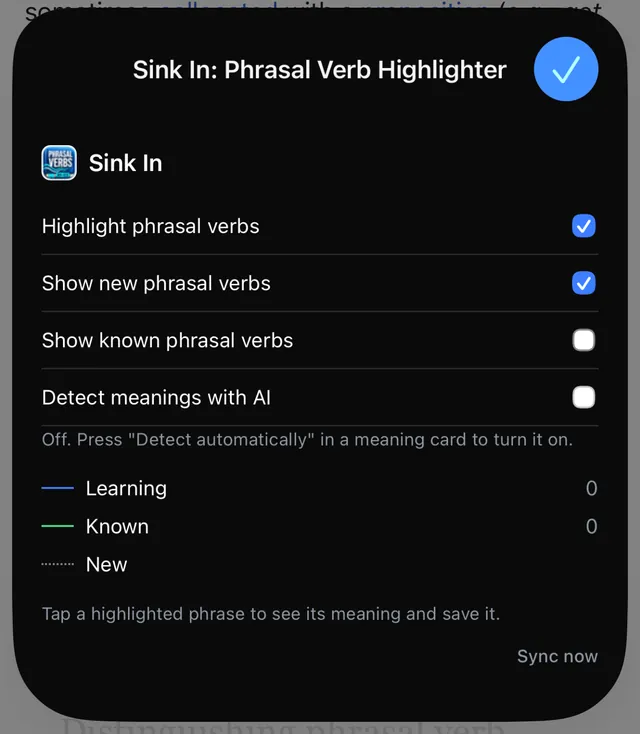
Phrasal verbs on the page now have a dotted line. Tap one to see its meanings, an example and its CEFR level. Tap Save to study list to practise it in the Sink In app.
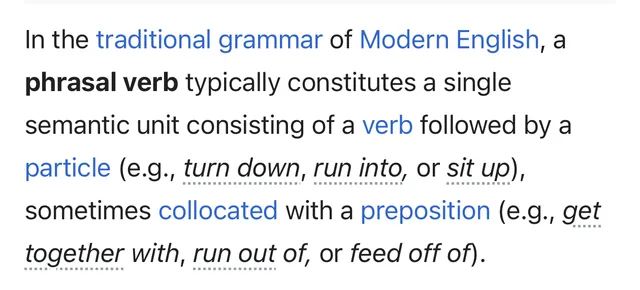
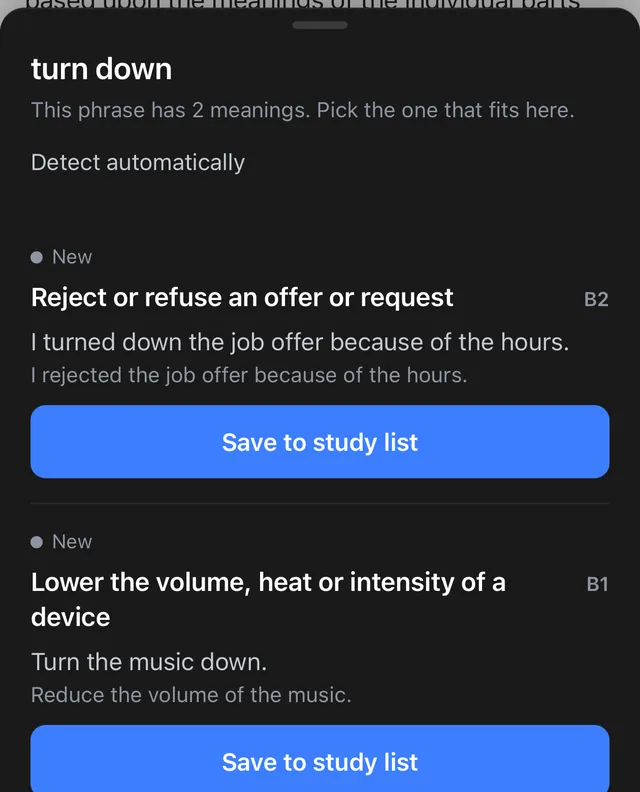
To change what Sink In shows, open the page menu and tap Sink In.
Another way: in Settings
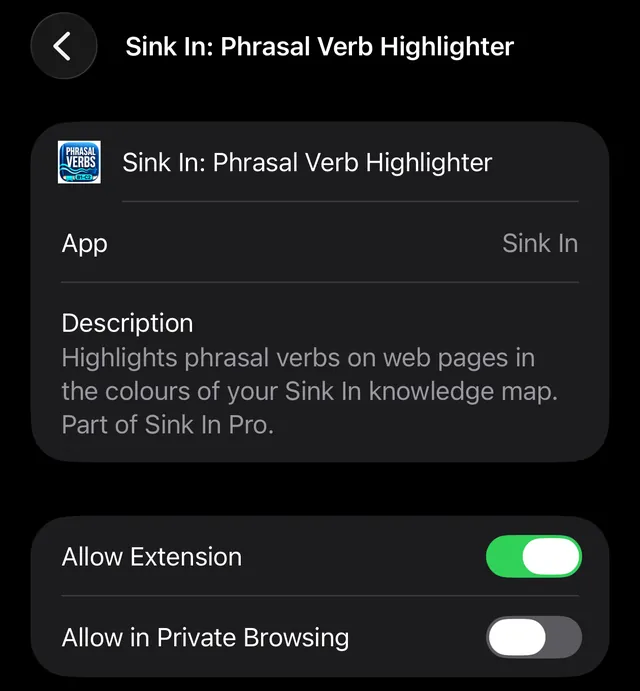
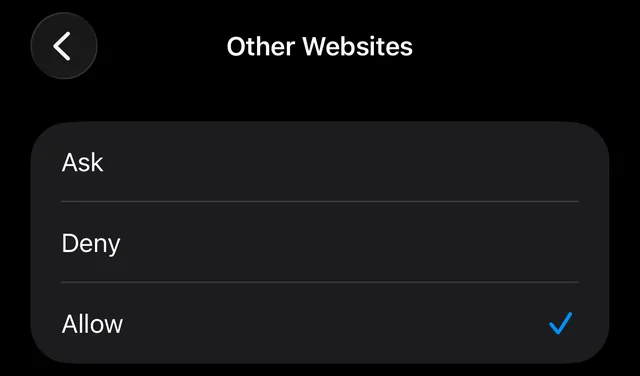
Open Settings > Apps > Safari > Extensions and tap Sink In: Phrasal Verb Highlighter. Tap the Allow Extension switch so it is green. Then tap Other Websites and choose Allow.
If it does not work
- Sink In is not in the list. Update the Sink In app from the App Store, then open Safari again.
- No lines on the page. Reload the page. Then open Settings and check that Other Websites is set to Allow, and that this site is not set to Deny.
← Back to the phrasal verb finder
Learn the phrasal verbs you find
Save them in Sink In and practise them in less than 2 minutes a day. Free on iPhone and Android, no card needed.